

Dashboard
Every deploy serves a management UI at /admin, built from the same single-file bundle the CLI
generates. There is no separate service to run and no vendor console to sign into. It makes no
request to anything outside your server: fonts, icons and styles are all inlined into that one file.
It is on by default. Set dashboard = false in flaghoist.toml to deploy the read and admin APIs
without it, and see Self-hosting for wiring it up by hand.
Signing in
Section titled “Signing in”Open https://<your-server>/admin and enter your admin token. The token is kept only for that
browser tab’s session (it is cleared when the tab closes, and after 30 minutes of inactivity) and
sent only to that server. It is never sent anywhere else, and nothing here can read it back out.
To manage a different server, open Advanced and change the server URL.
When the server has user accounts turned on, the sign-in screen asks for your email and password instead, and Use an access token switches back to the token. Your password is hashed in the browser and never sent to the server. With single sign-on set up, Continue with … sends you to your identity provider and back, signed in; if the server is SSO only, that is the only button apart from the access token.
Finding a flag
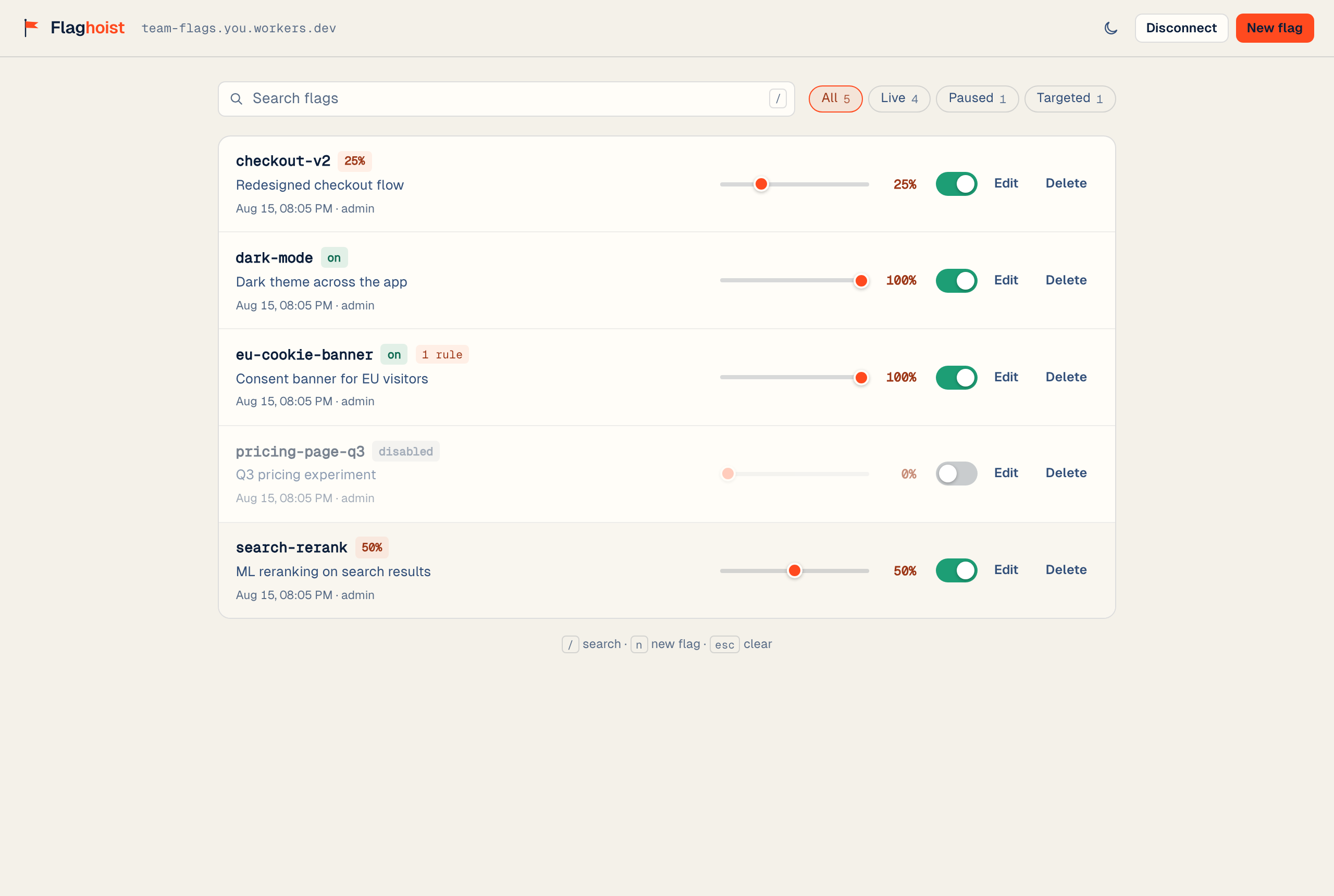
Section titled “Finding a flag”The search field matches against both the key and the description. Filter chips narrow the list to live, paused, or targeted flags, each showing a live count, so you can see how many flags are in each state before you click.
Keyboard shortcuts work anywhere on the page:
| Key | Action |
|---|---|
/ |
Focus search |
n |
Open the new-flag editor |
g o |
Go to Overview |
g f |
Go to Flags |
g w |
Go to Webhooks |
g a |
Go to Audit log |
g s |
Go to Settings |
Esc |
Clear search, or close the editor |
Changing a flag
Section titled “Changing a flag”Toggling a flag or dragging its rollout slider writes immediately; there is no separate save step for those two actions. Click Edit to open the full editor for a description, the default rollout, or targeting rules.
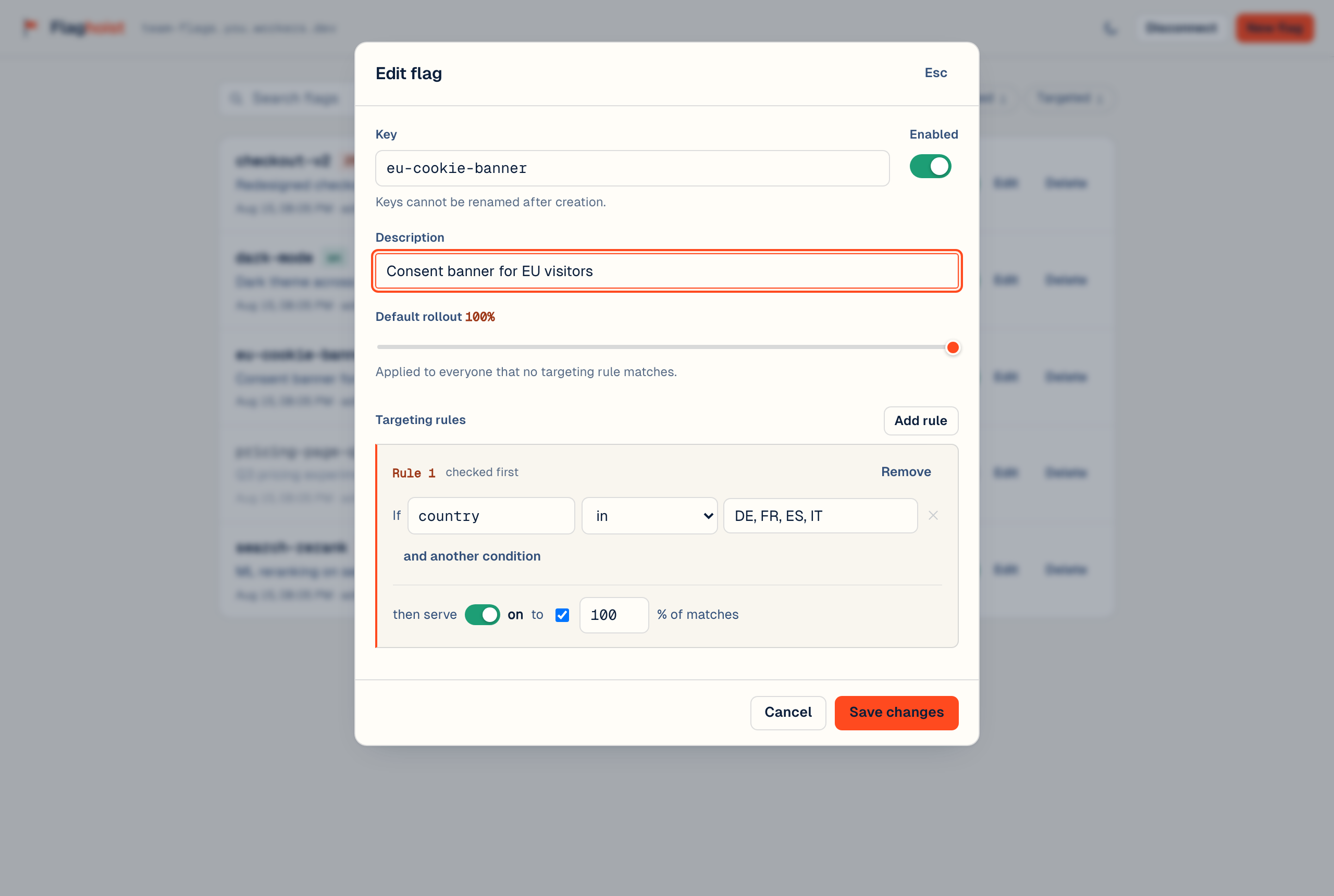
A rule reads as a sentence: if a condition holds, then serve on or off, optionally to a percentage of the matches. Rules are checked in order and the first match wins; a flag with no matching rule falls back to its default rollout.
Archiving a flag
Section titled “Archiving a flag”Archive on a flag’s row soft-deletes it: it stops evaluating and drops out of the main list, but its definition and history are kept, so Restore brings it back exactly as it was. Check Archived in the toolbar to see archived flags in the list; Delete (which is permanent) only appears there, on an already-archived flag, so an active flag can’t be deleted by accident.
Exporting and importing flags
Section titled “Exporting and importing flags”Export downloads every active flag as JSON. Import reads a JSON file in the same shape, shows a preview of what will change, and on confirmation creates any new keys and updates any existing ones. Archived flags are not included in an export, and importing never archives or deletes anything.
Audit log
Section titled “Audit log”Every create, update, delete, archive, and restore is recorded with who made it and when, whether it
came from the dashboard, the CLI, or a script against the admin API. Open it from the sidebar, g
a, or View audit log on Overview, and filter by action. Admins and owners also get a
Security tab: sign-ins, failed sign-ins, password changes and webhook changes.
Webhooks
Section titled “Webhooks”The Webhooks page (g w) manages HTTP callbacks fired when a flag changes. Add webhook takes a
URL and which events to send (all flag events by default; member events such as invites, joins and
role changes are listed separately and are off unless you tick them); the signing secret used to verify deliveries is shown
once on creation and can be revealed again later from the card. Test sends a synthetic delivery
to your URL without touching a real flag, so you can verify your endpoint’s handler before relying on
it. See the API reference for the delivery format and signature scheme.
Account
Section titled “Account”With user accounts on, the Account page shows your name, email and role, changes your password, and lists the sessions signed in as you, with the browser and when each was last active. Sign out any one of them, or all but the one you are using. Changing your password signs out the others.
Access tokens on the same page creates personal access tokens for the CLI, the MCP server and scripts: a name, a role up to your own, and an expiry (30 days, 90 days, a year, or never). The token is shown once, with a Copy button; afterwards the list shows its first characters, when it expires and when it was last used, with Revoke. You can also sign in to the dashboard with a token under Use an access token; password and session settings then need a normal sign-in.
Two-factor sign-in on the Account page sets up codes from an authenticator app: a QR code to scan (the key is shown too, for apps that cannot scan), one code to confirm, then ten recovery codes to save. Once it is on, the same section makes new recovery codes or turns it off, both with a current code. When your role requires it, the dashboard asks you to set it up straight after signing in.
Signed in with the admin token before any account exists, the same page creates the owner account.
Members
Section titled “Members”Admins and owners get a Members page. Create invite link takes an email and a role and shows a link to send the person yourself; it is shown only once, with a Copy button. Open invites are listed below the members, with New link (the old link stops working) and Cancel.
Each member row changes the role, creates a Reset password link, and disables, enables or removes the member. Owners are listed but only an owner can change them, and your own row has no controls. Someone opening an invite or reset link sees a short form to set their password, then lands in the dashboard signed in.
With more than one environment, each member row also has a role per environment (the main role unless you pick another), and the dashboard follows the role for the environment you are viewing.
The dashboard follows your role: viewers see flags with the switches turned off, editors do not see import or delete, and Webhooks and Members appear only for admins and owners. The server checks every action regardless.
Environments
Section titled “Environments”When the server has more than one environment configured, an Environment dropdown appears at the top of the sidebar. Switching it reloads the flag list, the audit log, and everything else in the dashboard scoped to that environment. The same flag key can be on in staging and off in production, and each keeps its own history. With one environment (or none configured), the dropdown is hidden and the dashboard behaves exactly as it always has.
Session and errors
Section titled “Session and errors”A mid-session 401 or 403 (a session that ended, or an admin token that was revoked) signs you
out and returns you to the sign-in screen with an explanation, rather than leaving every action failing silently.
Any other failure is shown inline without ending the session. See Authentication for how
tokens are validated server-side.
Appearance
Section titled “Appearance”The theme button in the top bar switches between light and dark; the choice is remembered for that browser. Left unset, the dashboard follows your operating system’s preference.